
Make Pet Portraits in Watercolor Style Using an AI Image Generator
Watercolor pet portraits combine familiar animal attributes with soft hues and expressive artistic styles. Their unique look is created by soft pigment washes, translucent layers, soft edges, and paper grain. Maintaining the size and proportions of the face, coat markings, and natural expressions makes each portrait personal. Dreamina AI uses text prompts and image editing capabilities to convert reference photos into artistic images. You can use appropriate photographs, discuss watercolor techniques, and add important details to make meaningful artwork. The idea is to create a balance between freedom to be creative and the qualities that make your pet recognizable.
Choose a Reference Photograph That Preserves Your Pet's Character
Having a clear reference photo is a better base to create a personal watercolor painting. Select a photo that displays your pet's eyes, muzzle, ears, and unique fur patterns. Fur colors, eye shades, and facial structure will be more accurately revealed by natural lighting than by harsh shadows. Symmetrical portraits look great in front-facing photos, and three-quarter poses add depth and personality. Never move, block faces, or have a distracting background that competes with the subject. Choose a picture of your pet in their natural state, not in a pose. Dreamina AI can then use this reference to direct an AI image generator towards your desired composition. Always use photos that you own or have permission to use.
Direct the Watercolor Style Without Losing Pet-Specific Details
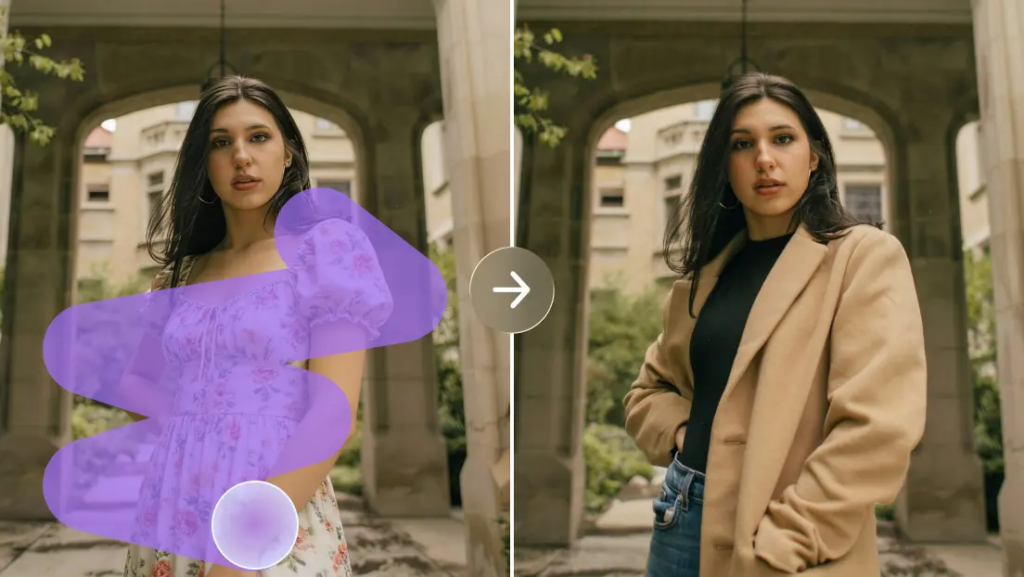
Dreamina AI accurately maintains the identifying characteristics and adds expressive watercolor methods with precise prompts. Include the species and breed (if known), coat color, markings, eye color, and ear shape. Ask for washes that are transparent, layers of color, fine brushwork, small color bleed, and textured watercolor paper. Include a subdued background, like an ivory wash, a light blue gradient, or a softly painted garden. Describe the desired mood as playful, dignified, curious, gentle, or contemplative. Ask for more sharpness around the eyes, nose, and muzzle, and softer transitions around the body. Lastly, identify the painting as a close-up, head-and-shoulders portrait, or full-body painting. Clear instructions minimize confusion and help to ensure more consistent artistic outcomes.
Steps to Make Pet Portraits in Watercolor Style Using an AI Image Generator
Step 1: Start with your pet's portrait idea
- First, sign up or log in to Dreamina to start painting your pet's portrait today.
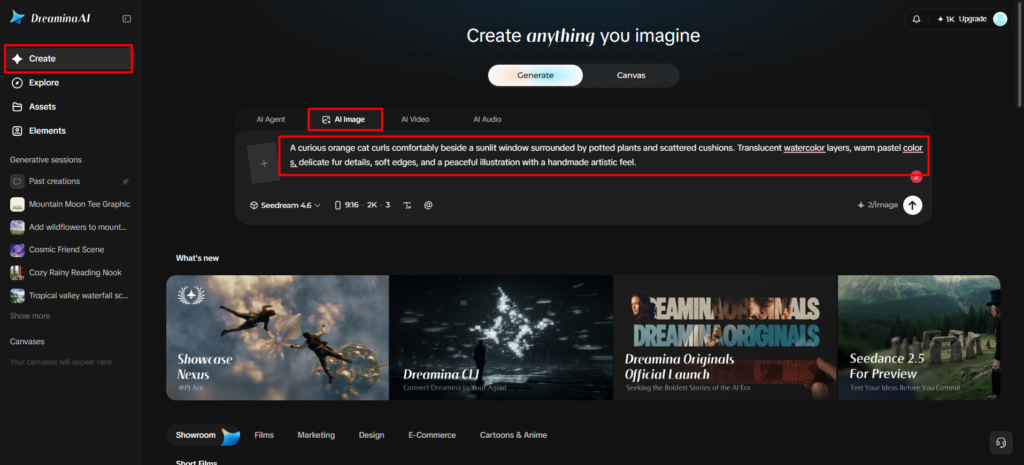
- Next, open the "Create" tab from the left menu and select the "AI Image" option.
- Later, enter a detailed text prompt describing your pet and the watercolor look you imagine. Include information on image elements, theme, and concept, like fur color, pose, and a soft background.
Step 2: Pick the model and set the canvas
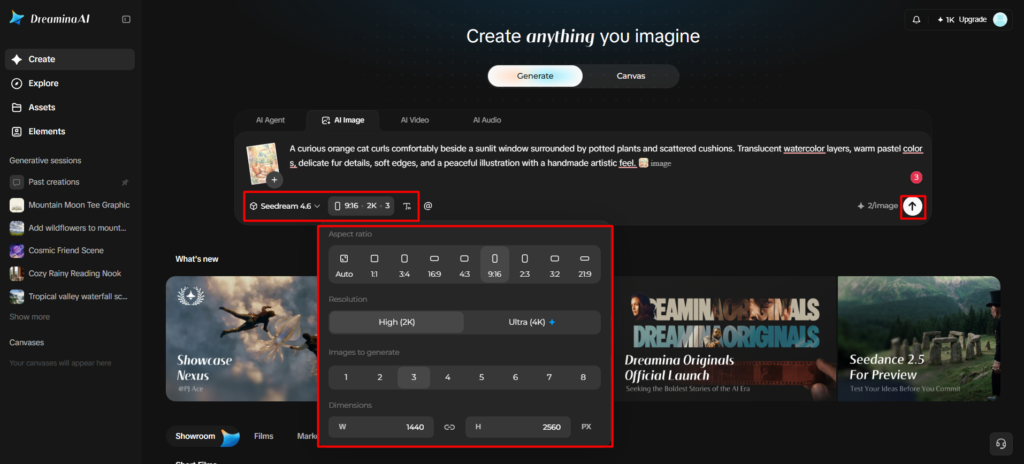
- Now, choose an image model from the options at the bottom of the dialogue box.
- Seedream, GPT Image, and Nano Banana all work, so choose the one you prefer most.
- Provide a reference image of your pet to make the portrait more precise and natural.
- Then, set the custom aspect ratio and resolution in the "Aspect ratio" and "Resolution" tabs.
- Use the "Images to generate" tab to select how many portraits you want to create. You can also set custom dimensions for your framed pet portrait through the "Dimensions" tab.
- If you want your pet's name on it, use the "Draw text on image" tab.
- Finally, click the "Generate" tab to begin the creation process for your pet watercolor portrait.
Step 3: Refine the portrait and save it
- Dreamina then gives you the required number of drafts, so review each watercolor result closely. If the fur or colors look off, choose "Edit prompt" or "Regenerate" to refine results.
- Next, upscale the generated image with "Creative upscale" to bring out soft watercolor brush textures.
- Moreover, use "Retouch" to correct, clean up, or enhance fine details of the selected portrait.
- Select "Remove" to erase anything unwanted from your portrait, like a leash or background clutter. Or choose the "Expand" tab to widen the scene around your pet for better framing.
- You can continue creating with your generated image by opening the "Generate video" tab to make a video.
- Dreamina gives you complete freedom to edit the portrait just the way you like.
- Finally, click the "Download" tab that sits at the top right of the Dreamina interface. It saves the image file on your local device, ready for printing, framing, or gifting.
Understand the Watercolor Details That Make a Portrait Convincing
Convincing watercolor paintings are more than just a color filter. Overlapping pigment layers, translucent glazes, ragged edges, and slight paper texture produce a more realistic painted look. Flowing transitions result from wet-on-wet effects, and dry-brush textures indicate fine surface detail. Soft blooms of pigment add natural irregularities that don't overpower the composition. The more specific the description of the media, the better Dreamina AI can respond; it does not respond well to requests for styling in art. Maintain adequate expression of eyes, noses, muzzles, and characteristic markings. Keep less important areas simple to maintain the watercolor painting effect.
Fine-Tune Fur, Facial Expression, and Background Harmony
Many times, the small features on the face are what make or break a watercolor portrait to look like its reference. Look at the eye alignment, ear shape, muzzle proportions, whiskers, paw anatomy, and distinctive markings. Too much smoothing will result in loss of fur patterns and an unnatural look. Warm and cool washes can add dimension and keep to the pet's natural color. At the same time, the negative space helps to avoid overpowering the subject with decorative backgrounds. With Dreamina AI, users can edit specific sections without having to reconstruct the full composition, thanks to its localized editing features. Work out any rough bits of information one by one and compare with the original photo. This careful review allows recognition of the anatomy while enjoying artistic simplicity.
Prepare Watercolor Pet Artwork for Printing or Digital Display
The size, shape, and layout depend on the type of display you are planning to use. Square portraits work well for numerous profile photos, and vertical pictures are good for framed pet art. Dreamina AI supports various aspect ratios (the specific ones may depend on the model used). In general, higher resolution outputs offer greater flexibility in printing, depending on the intended size and level of detail. Look at the artwork at the actual size before placing print orders. Make sure to review paper colour, cropping, spacing of borders, and framing requirements. For a traditional look, textured watercolor paper can add a certain texture, and appropriate digital displays can capture nuances in colour. Upscaling can make an image larger, but will not ensure that all the missing details will be recovered. Keep the original photo and check usage permissions before sharing or selling the artwork.
Conclusion
Good watercolor pet portraits are a mix of expressive texture and animal attributes. Use a good photo as a starting point, and discuss distinguishing features, face shape, colour, etc. Those references can be turned into personalized artwork with image generation and specific editing using Dreamina AI. Carefully read through each draft, fixing any parts that are not accurate before finalizing the composition. Enhance your palette, background, and pet pigment texture without losing your pet's personality. A well-known photo can be transformed into meaningful artwork for personal use or as a gift; with careful guidance and editing, it can be a watercolor!